User Manual2
Version: Final (2025-09-29) — Matches the shipped system: React UI, Express API, Python scan engine (TCP), Supabase.
AT-AT — Comprehensive User Manual
Section titled “AT-AT — Comprehensive User Manual”Table of Contents
Section titled “Table of Contents”- Overview
- Quick Start
- Signing In & Account Access
- 3.1 Login
- 3.2 Create an Account
- 3.3 Forgot / Reset Password
- Home
- Dashboard
- 5.1 Metrics
- 5.2 Running Scans
- 5.3 Quick Actions
- Managing APIs
- 6.1 Add API (manual)
- 6.2 Import OpenAPI (JSON/YAML)
- 6.3 Endpoints & Details
- 6.4 Tags & Flags
- 6.5 Sharing
- 6.6 Scheduling Scans
- History & Reports
- Settings
- Help, Privacy & Terms
- Troubleshooting
- FAQ
- Keyboard & Productivity Tips
- Glossary
1. Introduction
Section titled “1. Introduction”APIs have become a critical component of modern software systems, enabling seamless data exchange and integration across applications. However, this growing reliance on APIs also increases their exposure to security threats such as unauthorized access, data breaches, and injection attacks. The API Threat Assessment Tool provides a comprehensive solution for identifying, analyzing, and mitigating these risks. This manual introduces the tool, outlines its features, and guides you through its installation, configuration, and usage to ensure your APIs remain secure and compliant with industry standards.
1.1. Purpose of the Tool
Section titled “1.1. Purpose of the Tool”The API Threat Assessment Tool is designed to help developers, security analysts, and system administrators identify, assess, and mitigate potential security risks in APIs. With the increasing reliance on APIs for application integration and data exchange, ensuring their security is critical to prevent data breaches and maintain system integrity.
1.2. Why It’s Important
Section titled “1.2. Why It’s Important”APIs are a common target for cyberattacks, such as injection attacks, broken authentication, and data exposure. This tool addresses these threats by providing automated scanning, threat detection, and actionable security recommendations.
1.3. Key Features
Section titled “1.3. Key Features”• Users can import an API specification either by uploading a YAML or JSON file or by entering API details manually. • Add and manage endpoints and tags to ensure all relevant parts of the API are included in the assessment. • Scan the API against the OWASP Top 10 API Security Risks, either all at once for a complete assessment or individually for targeted checks. • Generates a comprehensive security report after each scan, highlighting vulnerabilities and providing actionable recommendations. • Ability to select specific security checks based on your organization’s priorities or compliance requirements. API Threat Assessment Tool – User Manual
1.4. Scope of the Manual
Section titled “1.4. Scope of the Manual”This manual will guide you through the configuration and usage of the API Threat Assessment Tool, enabling you to protect your APIs from common and emerging threats effectively. NB – For ease of use, Chrome and Microsoft Edge browsers are recommended.
- You bring: your API spec (OpenAPI).
- AT-AT provides: guided workflows for importing, scanning, reviewing results, tagging/flagging, and sharing summaries.
Supported browsers: latest Chrome or Edge (recommended).
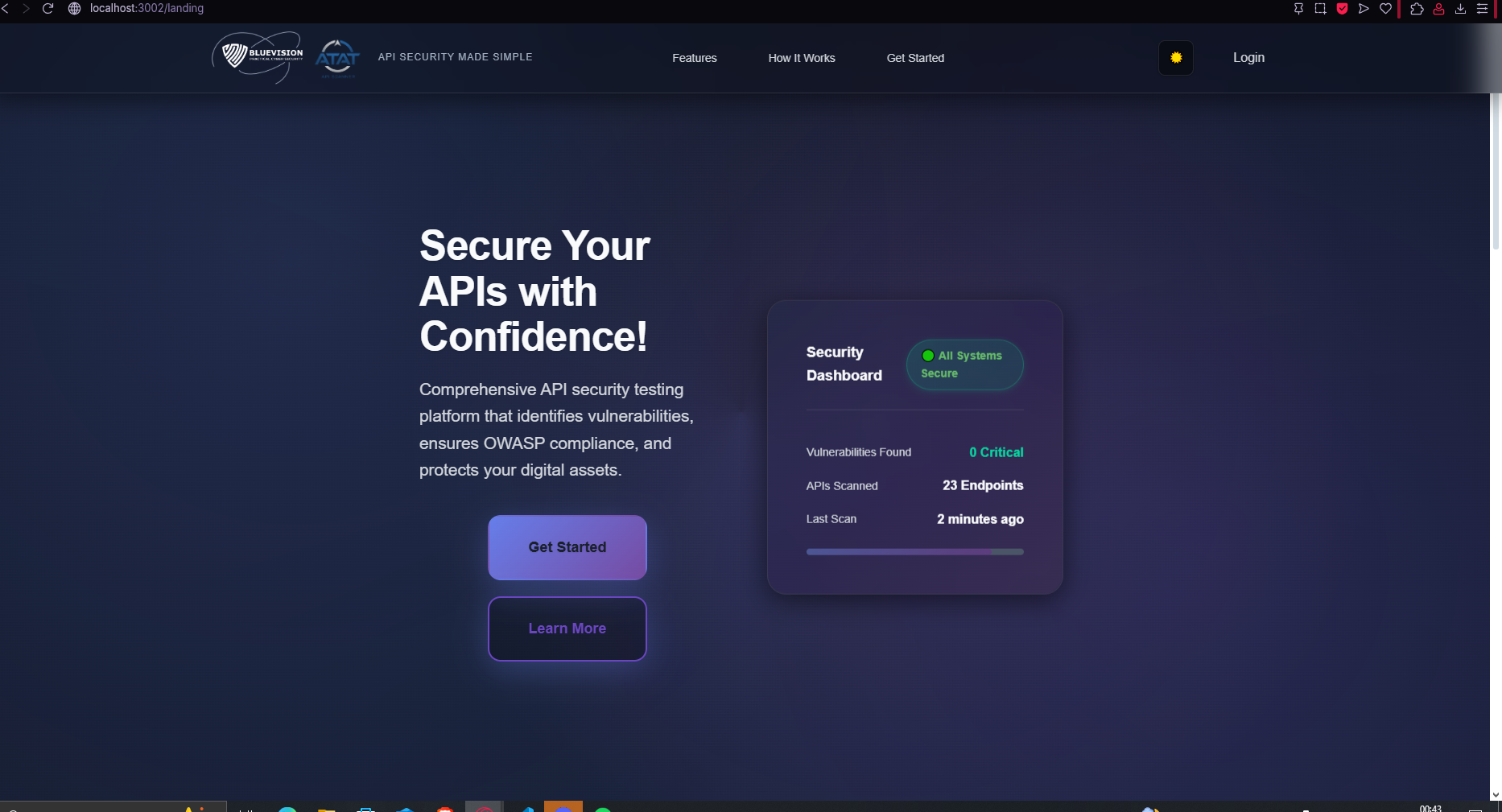
Quick Start
Section titled “Quick Start”- Sign in or create an account.
- Import your API (OpenAPI JSON/YAML) or Add API details manually.
- Start a scan using a profile/check set.
- Monitor progress and view results.
- Use tags/flags to triage; share summaries if needed.
Signing In & Account Access
Section titled “Signing In & Account Access”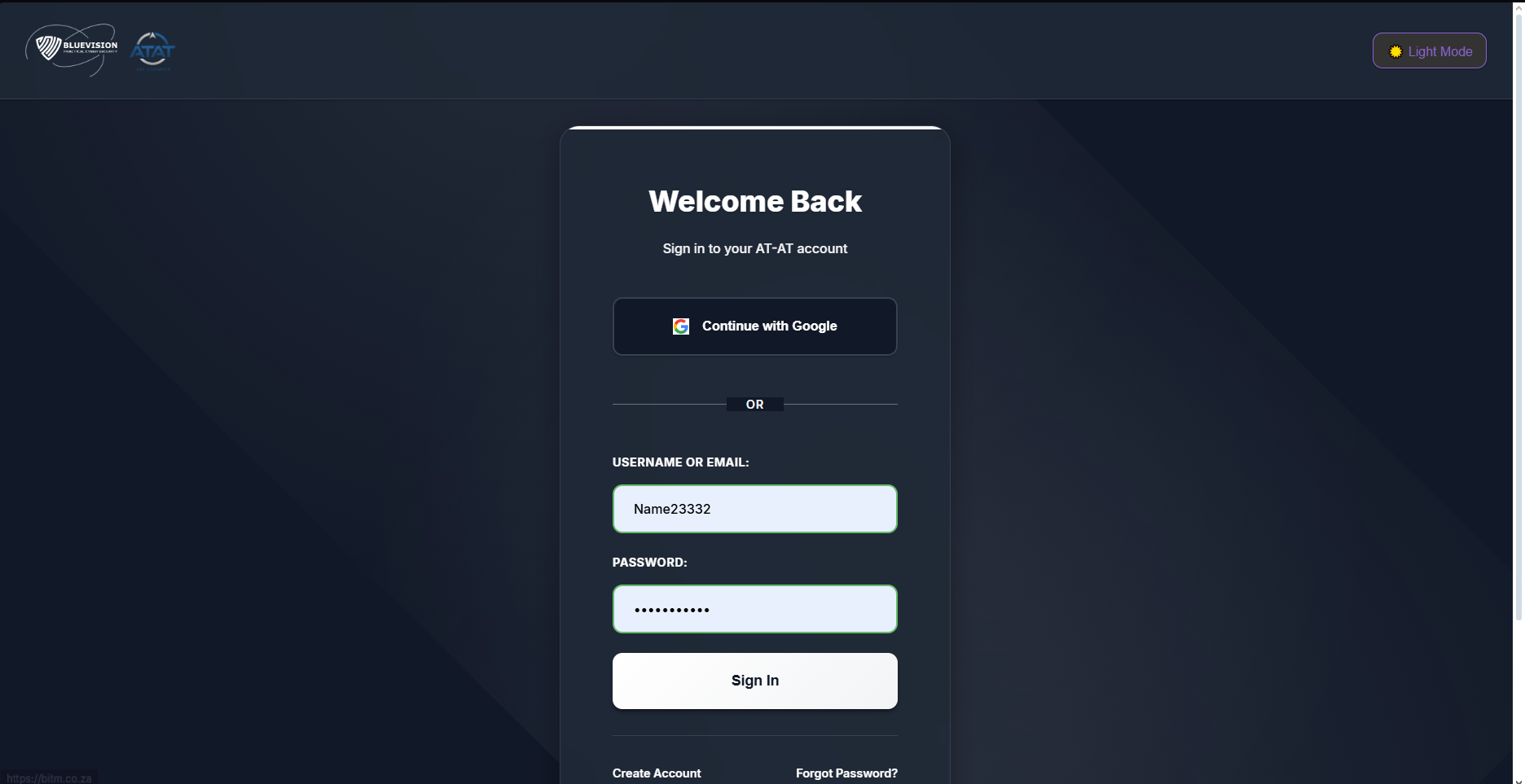
- Enter email/username and password.
- Use Forgot password if you can’t sign in.
- New here? Click Create account.
Create an Account
Section titled “Create an Account”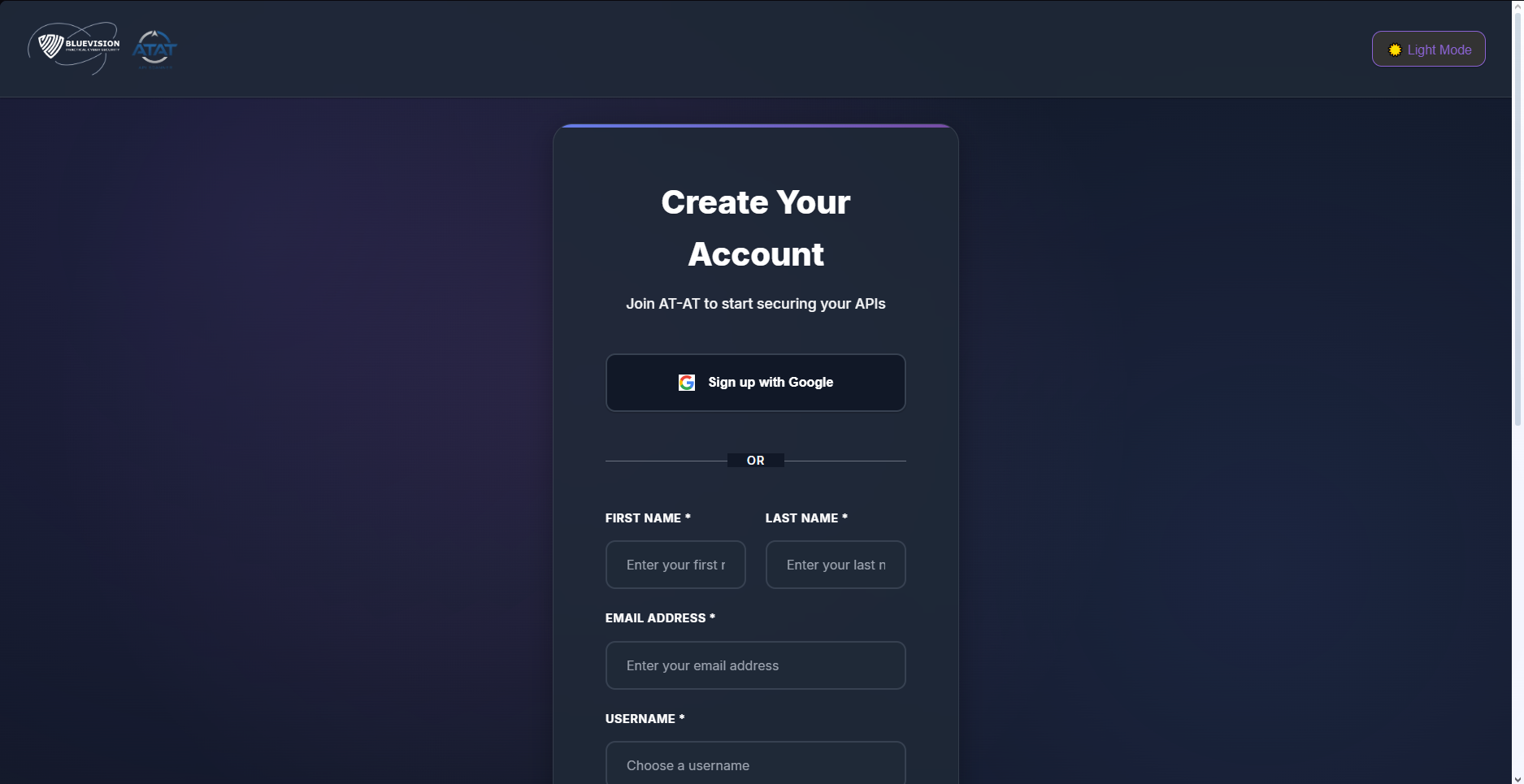
- Provide first name, last name, email, username, and password.
- Accept Terms & Conditions to complete registration.
Forgot / Reset Password
Section titled “Forgot / Reset Password”- Forgot: request a reset link; the app returns a generic success message (prevents user enumeration).
- Reset: open the link from your email and set a new password.
- Tokens are one-time and expire after 60 minutes.
The Home screen centralizes your primary actions.
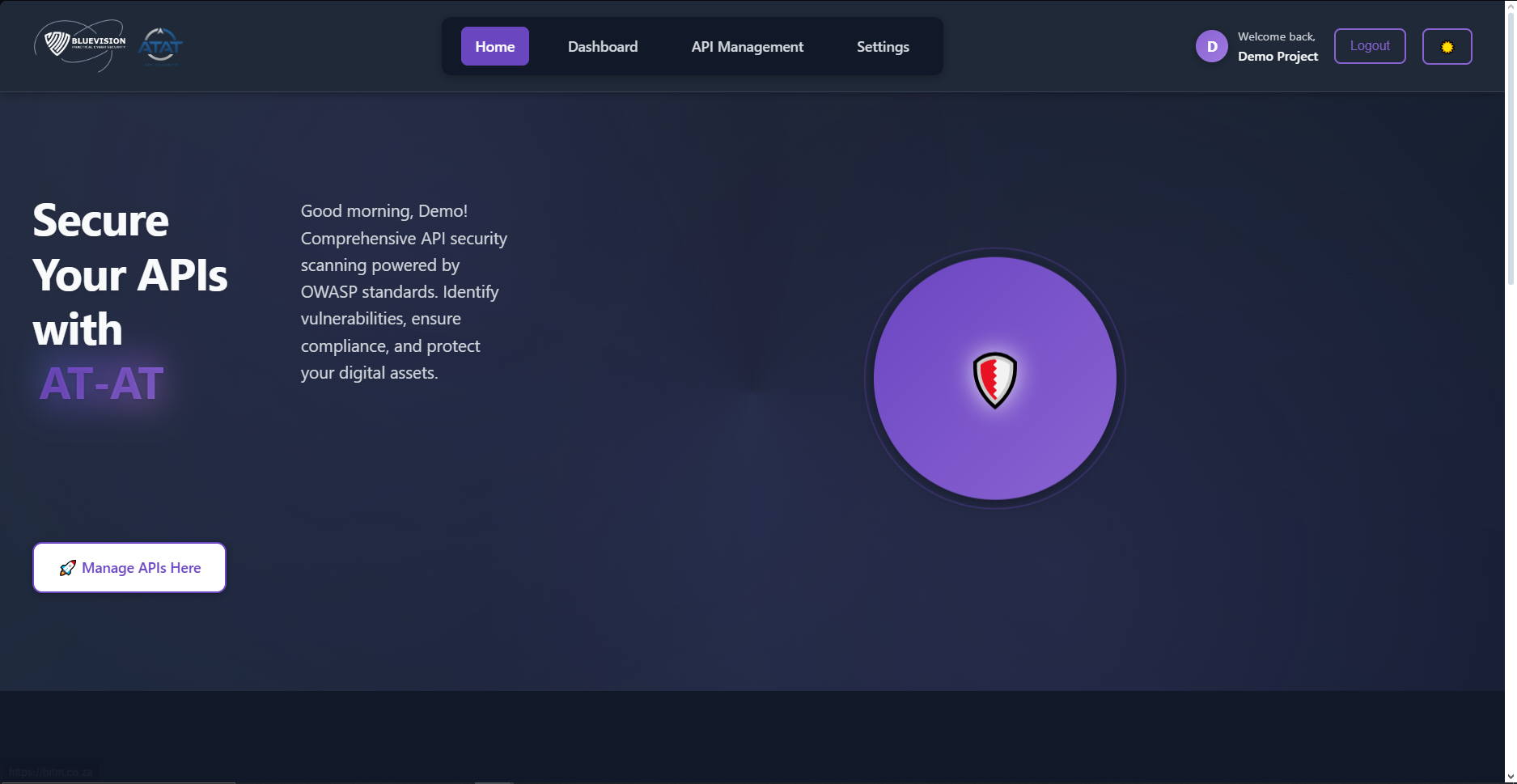
- Run a Scan — launch the scan flow.
- Explore Templates — browse preconfigured check sets.
- View Reports — open recent results.
- Manage APIs — add/import and configure your APIs.
Dashboard
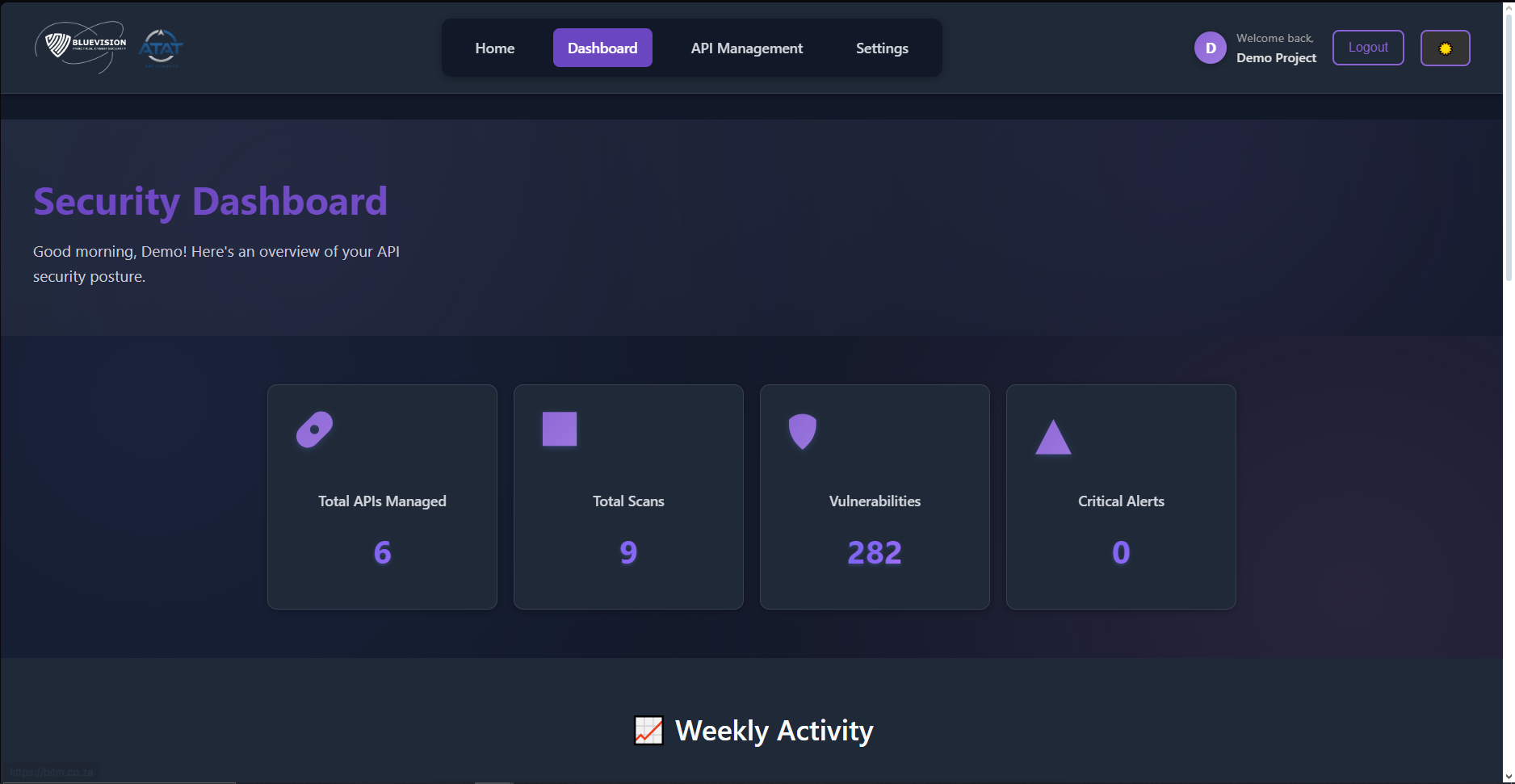
Section titled “Dashboard”The Dashboard aggregates key indicators and provides shortcuts to run scans or view reports.
Metrics
Section titled “Metrics”See high-level stats, recent activity, and quick links to frequent actions.
Running Scans
Section titled “Running Scans”Configure a Scan
Section titled “Configure a Scan”From Dashboard or API pages:
- Select an API.
- Choose a profile or checks.
- Click Start Scan.
Monitor Progress
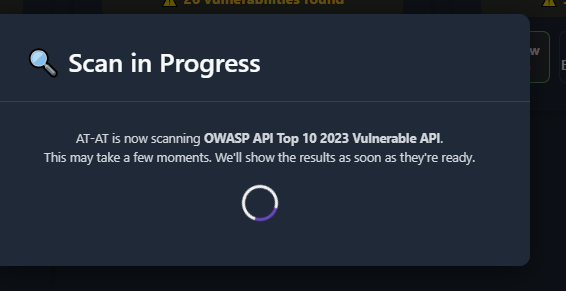
Section titled “Monitor Progress”- Watch status updates during execution.
Quick Actions
Section titled “Quick Actions”- Manage APIs — go to API management
- Scan Templates — open template library
- Account Settings — update your profile
- Documentation — open help resources
Managing APIs
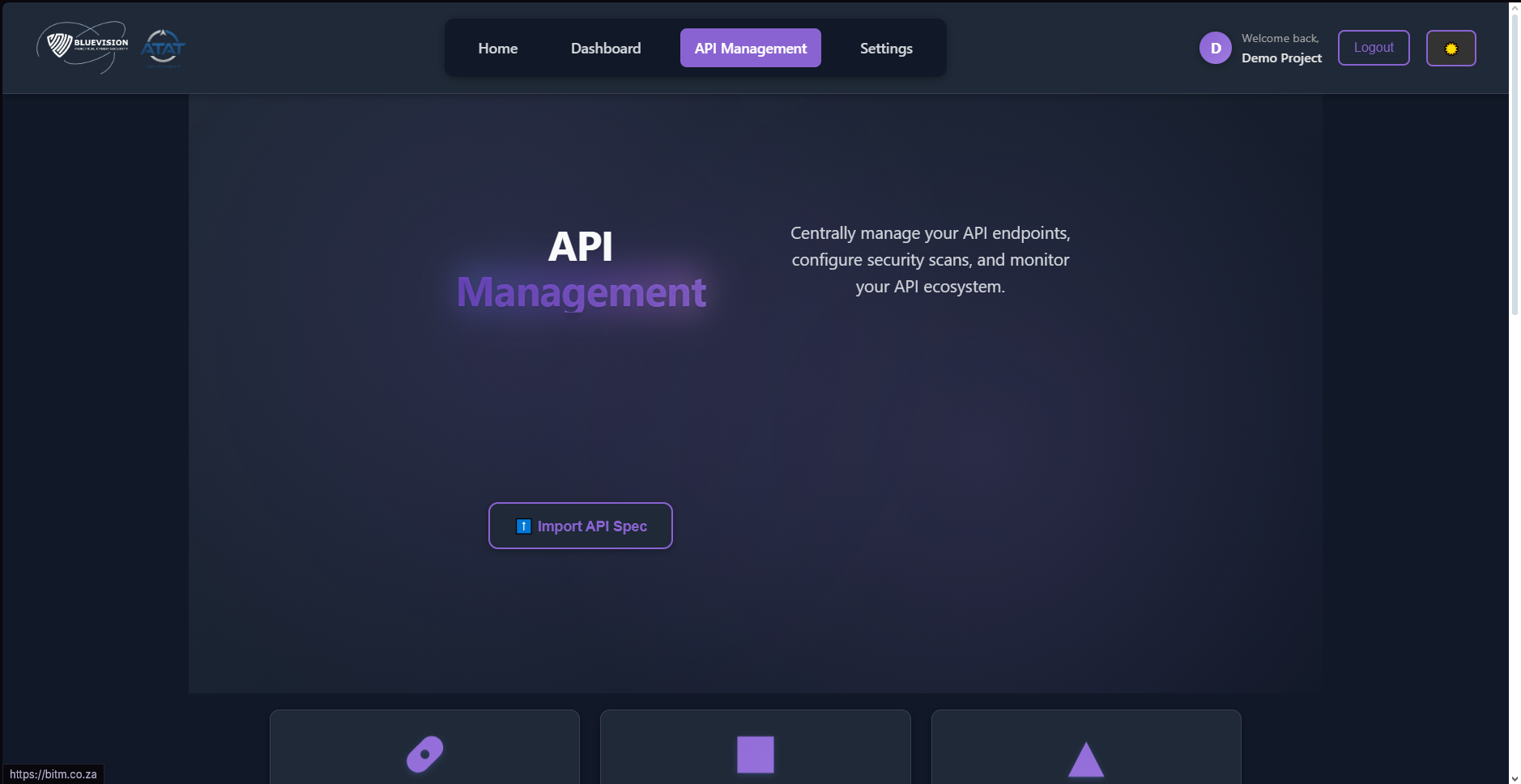
Section titled “Managing APIs”Centralize all the APIs you assess: import, edit, and organize.
Add API (manual)
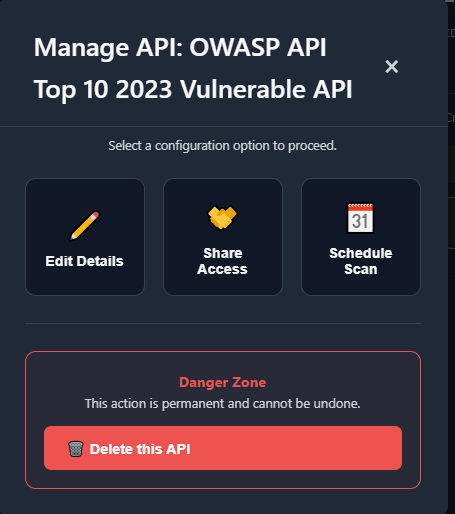
Section titled “Add API (manual)”Click Add API and enter the basics:
- Name, Base URL, Description (optional)
Import OpenAPI (JSON/YAML)
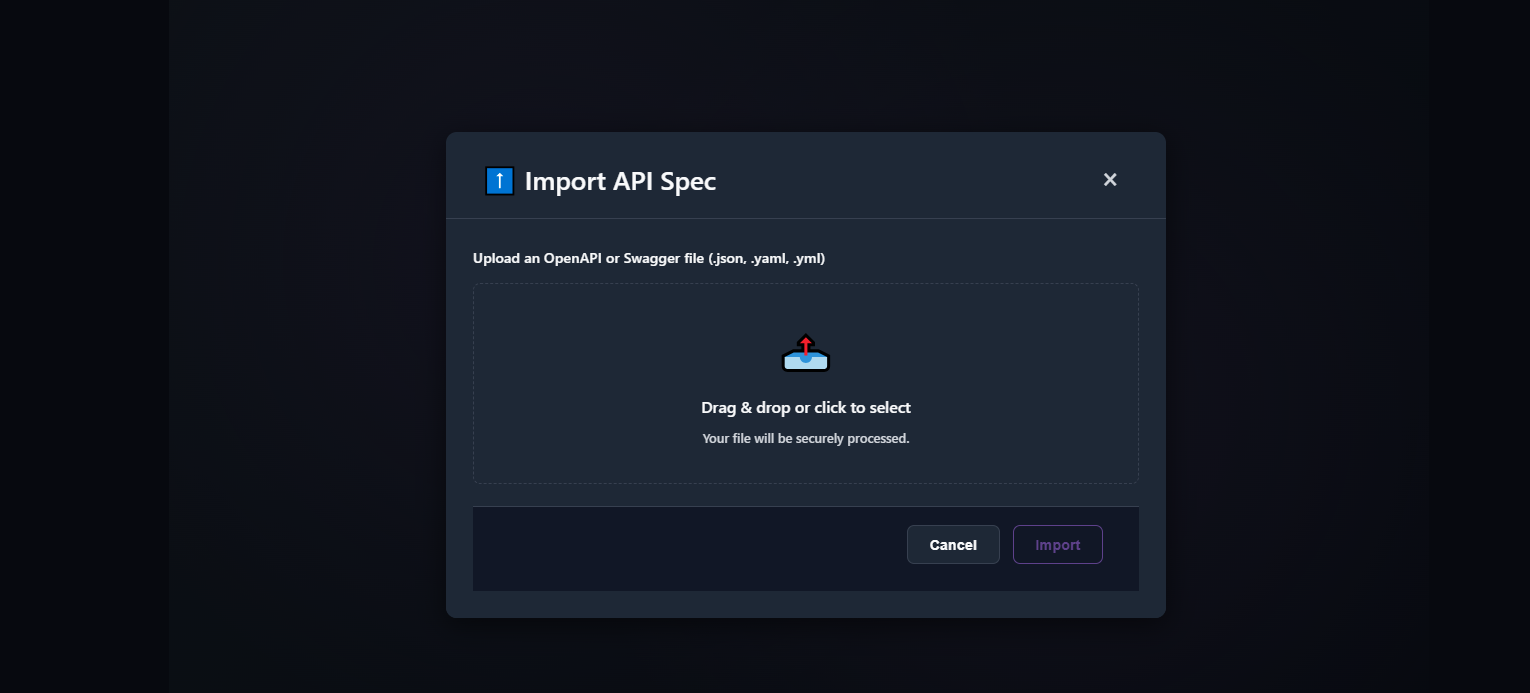
Section titled “Import OpenAPI (JSON/YAML)”Import a .json or .yaml/.yml OpenAPI file. The app validates file type/size and parses endpoints.
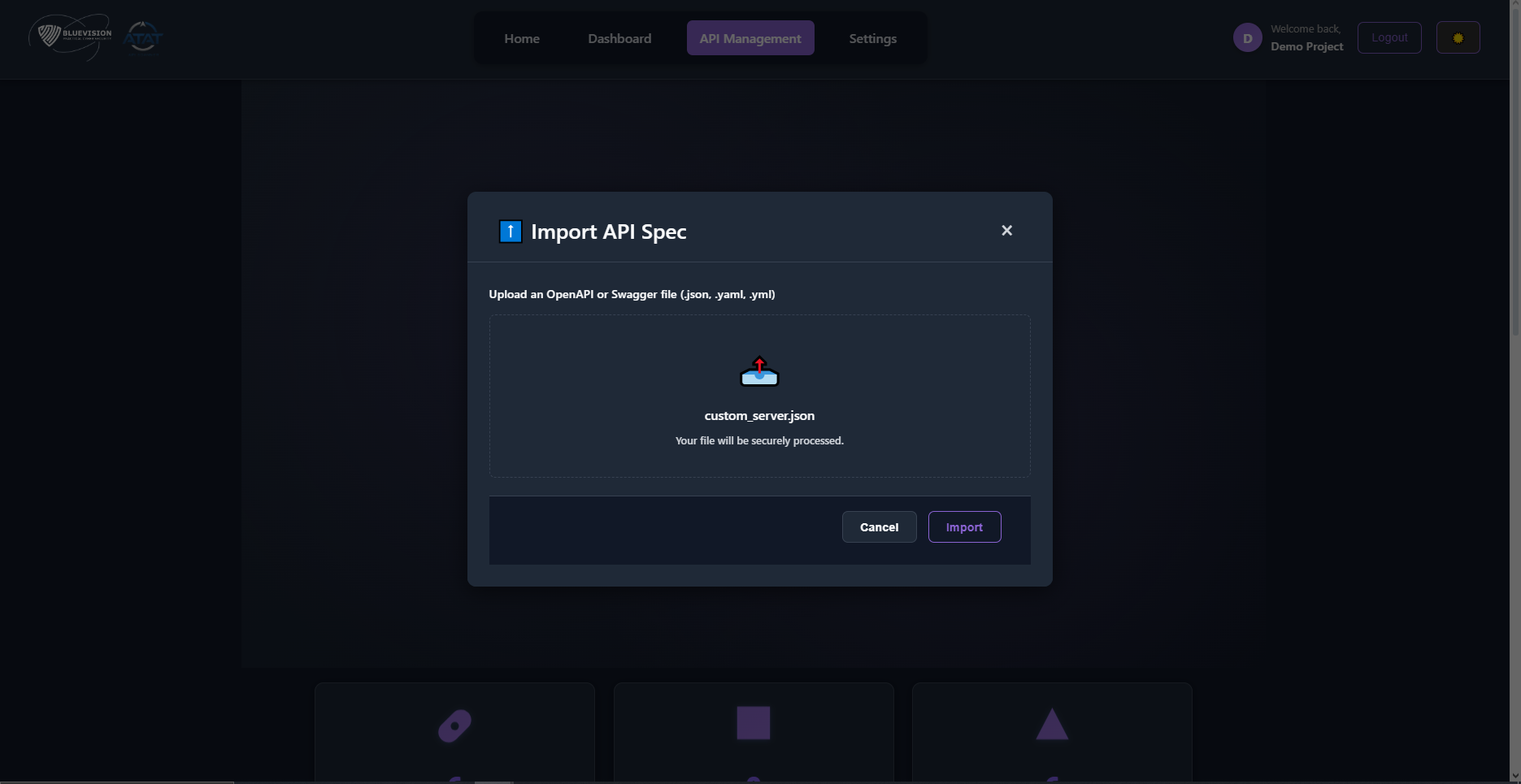
Tips
- Keep your spec valid (use an OpenAPI linter if possible).
- Large specs import faster if you remove unneeded examples/schemas.
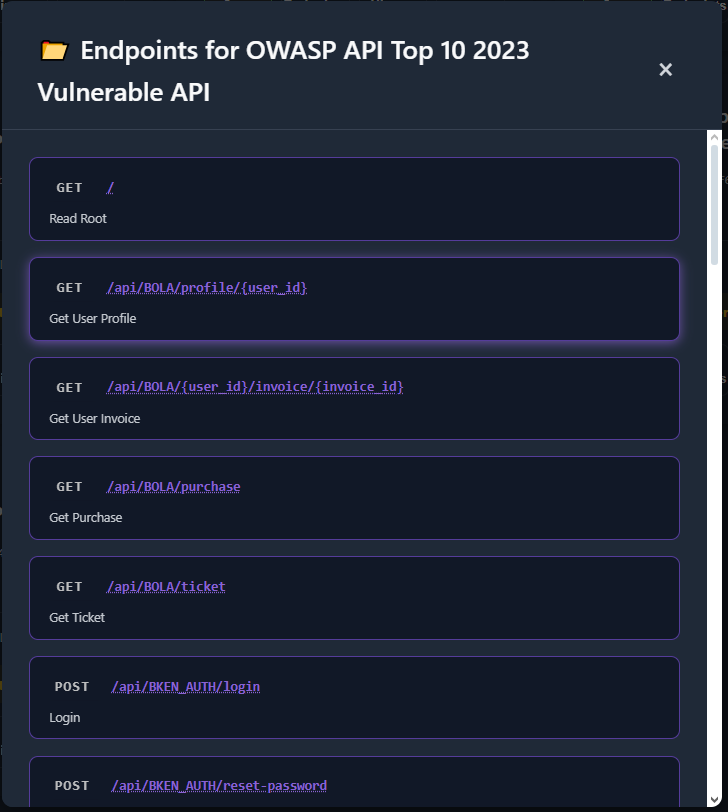
Endpoints & Details
Section titled “Endpoints & Details”Review endpoints derived from your spec: method, path, parameters, and descriptions.
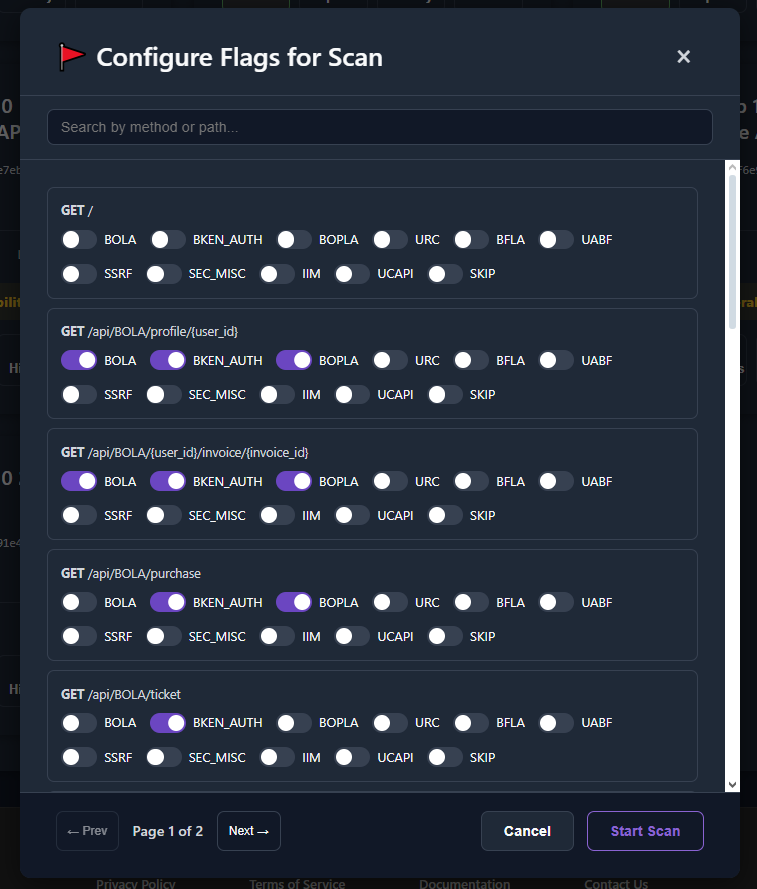
Tags & Flags
Section titled “Tags & Flags”Use tags to categorize, and flags to highlight priority items.
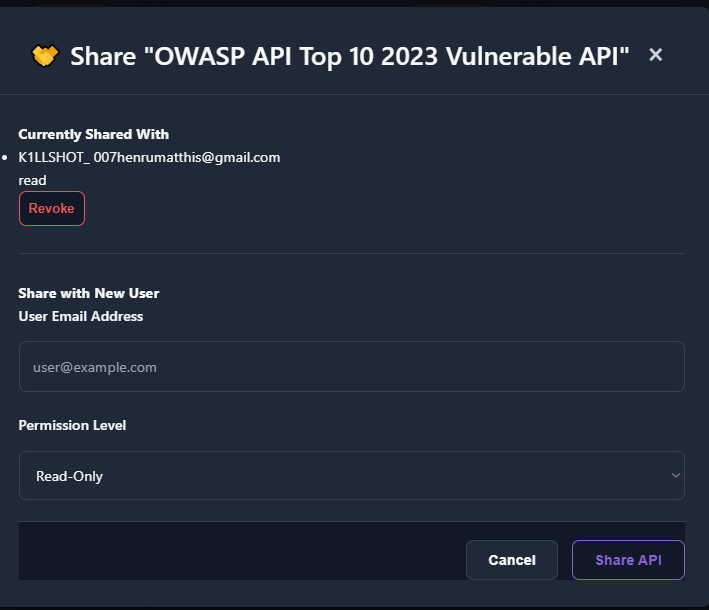
Sharing
Section titled “Sharing”Share summaries where appropriate (e.g., to your team).
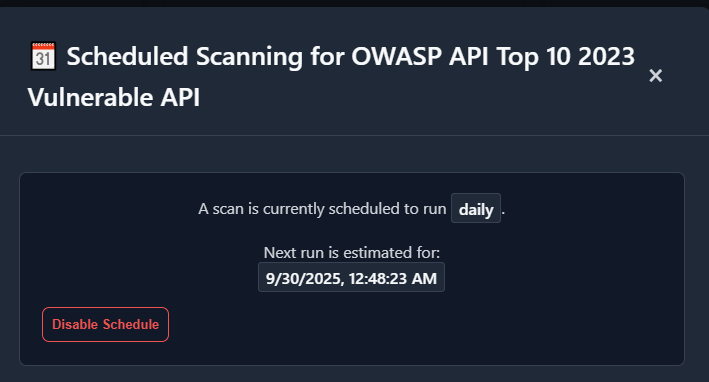
Scheduling Scans
Section titled “Scheduling Scans”Schedule recurring scans if your build supports it.
View Results & Reports
Section titled “View Results & Reports”When complete, open the report to inspect findings.
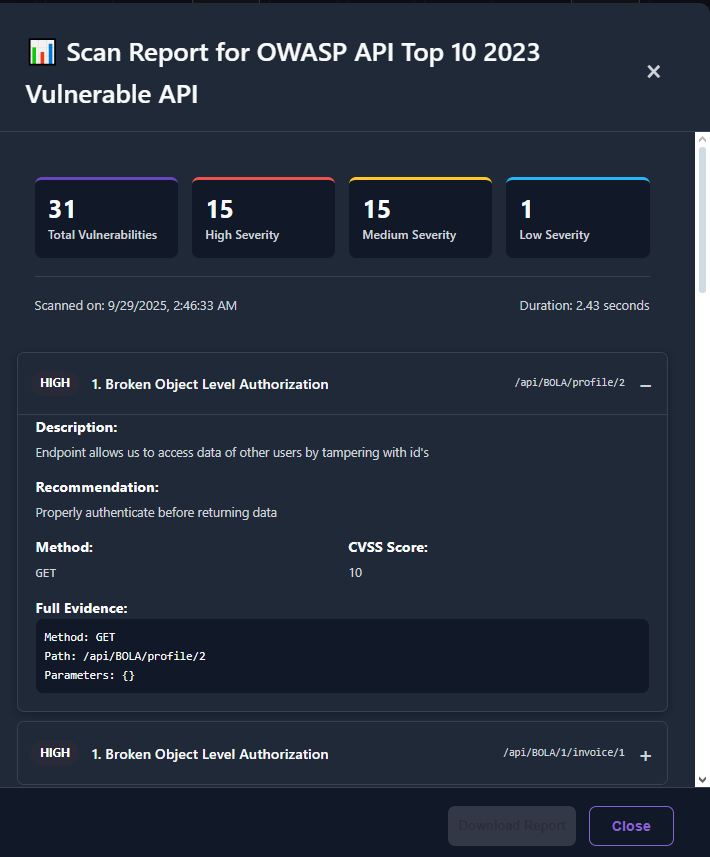
- Group by risk/test or endpoint.
- Drill down to see evidence and guidance.
- Export HTML/JSON where available. (PDF export is not part of this build.)
History & Reports
Section titled “History & Reports”Browse past scans, filter by API or date, and re-open reports.
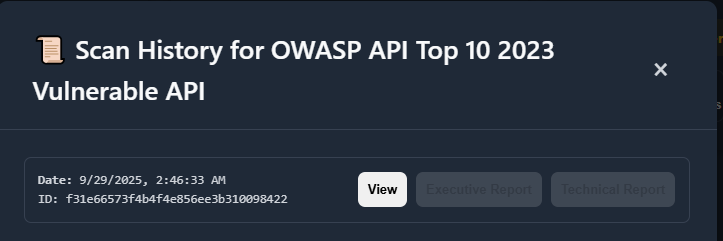
Tip: Use tags/flags to curate a shortlist for review meetings.
Settings
Section titled “Settings”Update your profile, change your password, and adjust preferences.
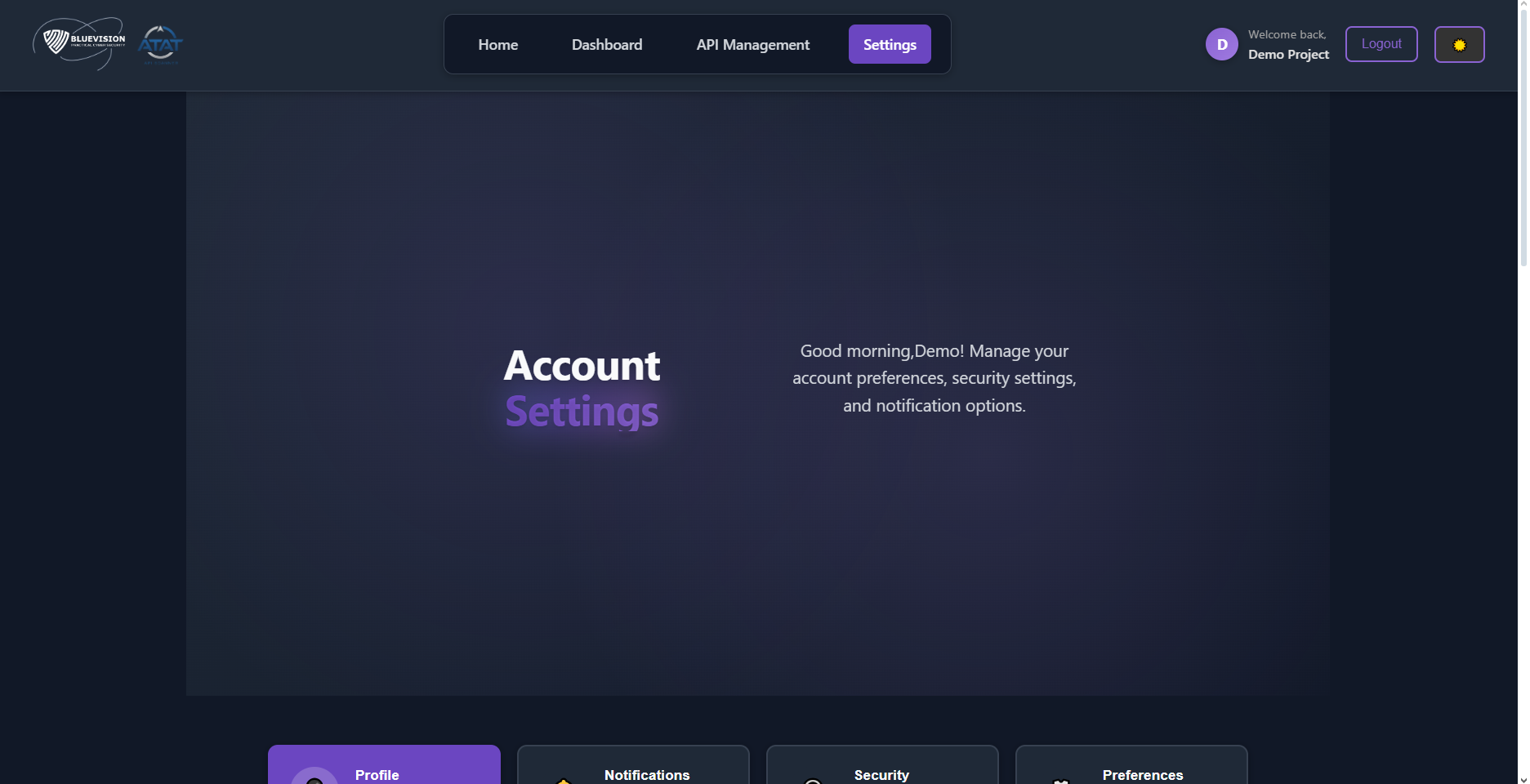
- Profile: name, email (verification may be required for changes)
- Security: change password
- Preferences: theme and UI options
- Notifications: enable/disable categories
Help, Privacy & Terms
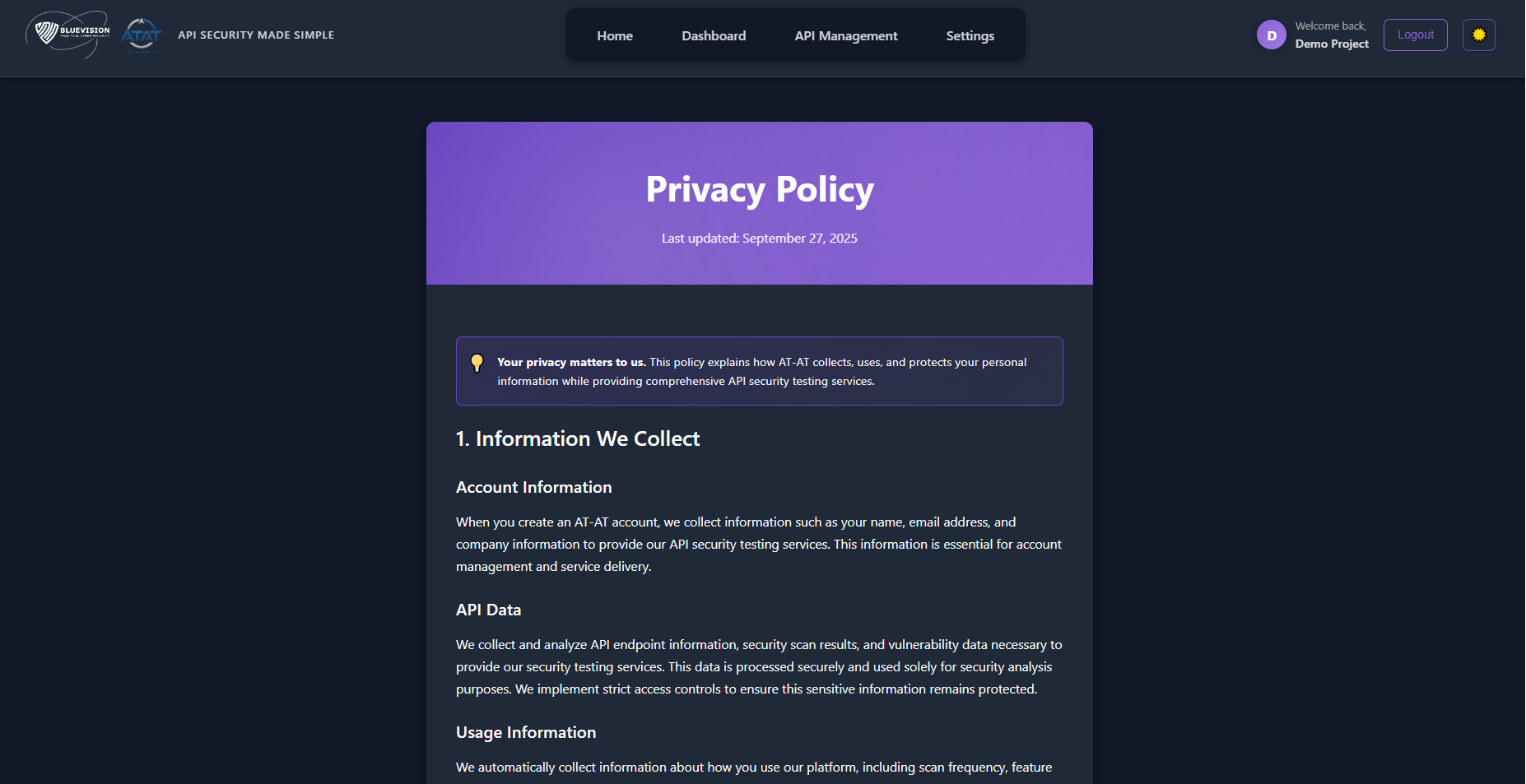
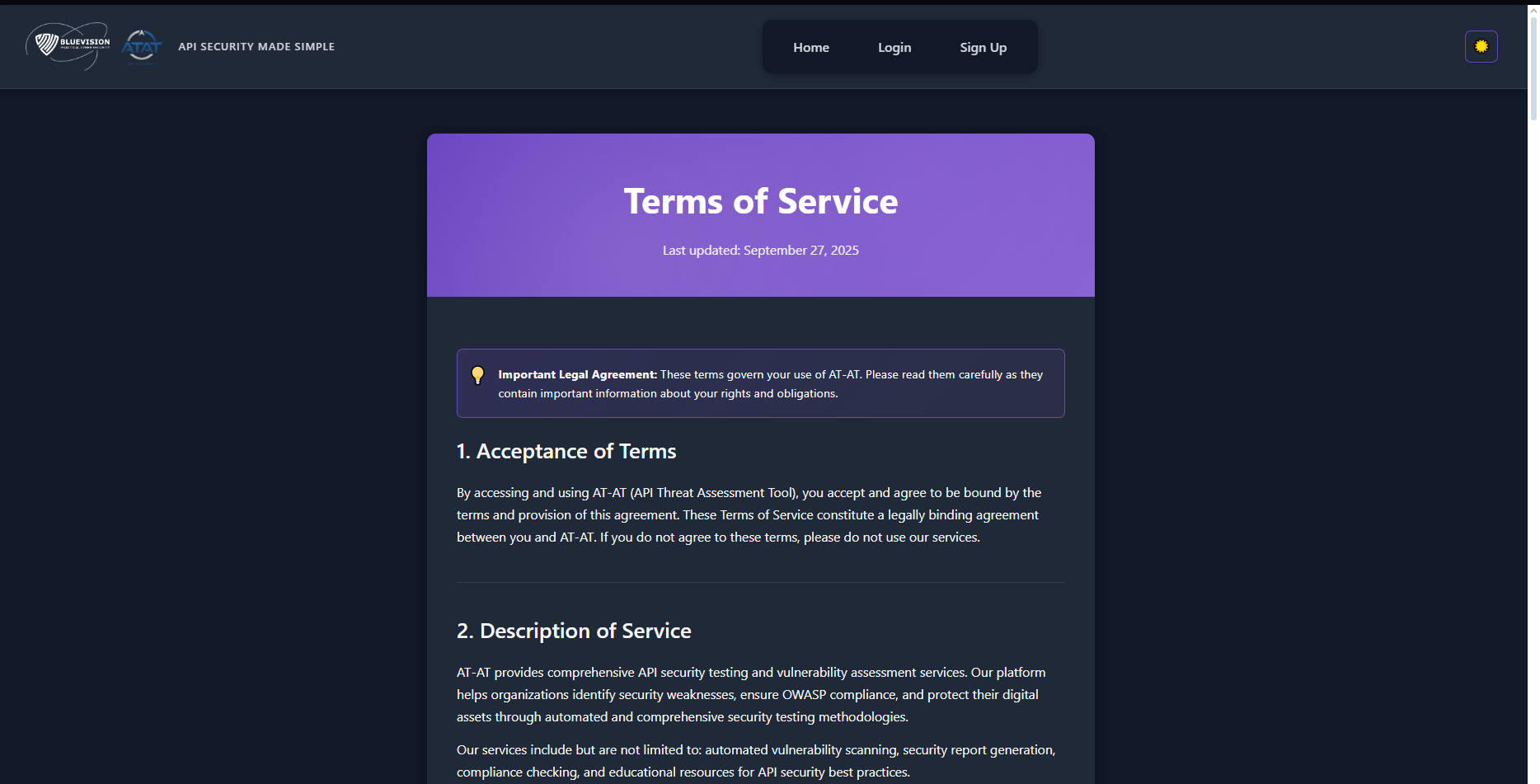
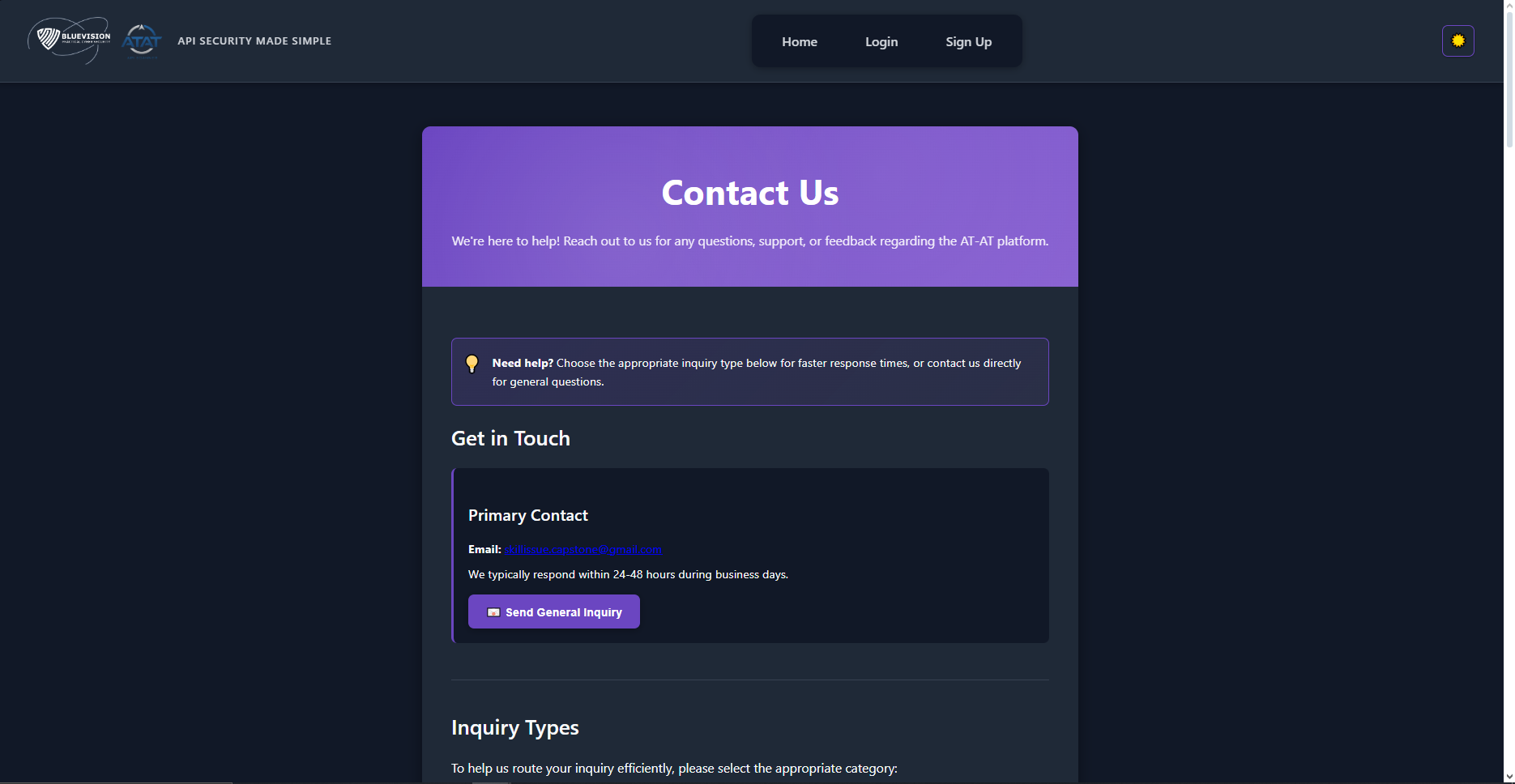
Section titled “Help, Privacy & Terms”Access help resources and review your legal documents.
Privacy Policy
Terms of Service
Contact Us
Troubleshooting
Section titled “Troubleshooting”I can’t log in
- Check your email/username and password.
- Use Forgot password to reset credentials.
Import failed
- Ensure the file is .json or .yaml/.yml.
- Validate your spec (OpenAPI 3.x recommended).
- Large specs: remove excessive examples or unused schemas.
No results after starting a scan
- Confirm the engine is running (if self-hosted).
- Re-open the History tab to check status; refresh if needed.
Screens look different
- You may be on a newer build; this manual targets the final Demo-4 release.
Q: Do I need an OpenAPI file?
A: Yes. Scans are driven by your uploaded spec (JSON/YAML).
Q: Can I export PDF?
A: Not in this build. Use HTML/JSON exports where available.
Q: Are role-based permissions supported?
A: This build uses JWT on selected routes; fine-grained RBAC is out of scope.
Q: Can I schedule scans?
A: If your environment enables scheduling, the UI provides a Schedule option (see screenshot).
Keyboard & Productivity Tips
Section titled “Keyboard & Productivity Tips”- Search (/) or Ctrl/Cmd+K: jump to features.
- Use tags/flags: group hot items for triage.
- Open results in a new tab: keep context while reviewing multiple endpoints.
Glossary
Section titled “Glossary”- OpenAPI: a standard for describing REST APIs.
- Endpoint: an API method+path (e.g.,
GET /users). - Tag/Flag: labels to organize and prioritize items.
- Profile/Checks: sets of security tests to run.
- Report: the findings produced after a scan.
End of manual.